|
Cloning a
Database Instance
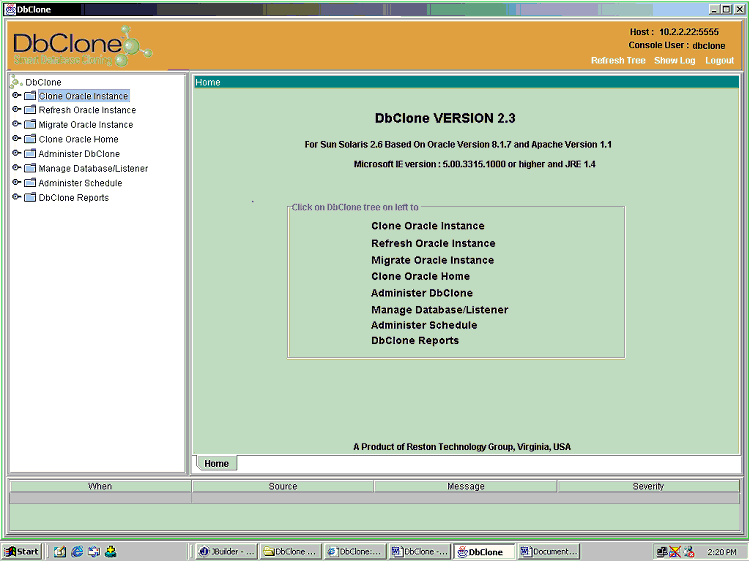
This is the
Home page of DbClone. The operations such as
Cloning/Refresh/Migrating
are performed by selecting the corresponding node in the tree shown on
the left panel of the console. Expand each node to select the
desired operation.
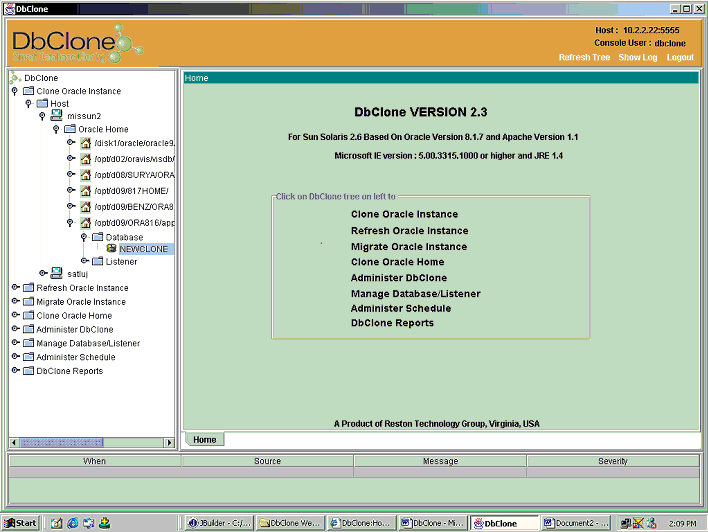
For example to clone a database
as shown in the console picture "NEWCLONE’ under oracle home /opt/d09/ORA816/app/oracle/8.1.6
on server “missun2”, navigate the tree starting with “Clone
Oracle Instance” node until the source database is located.
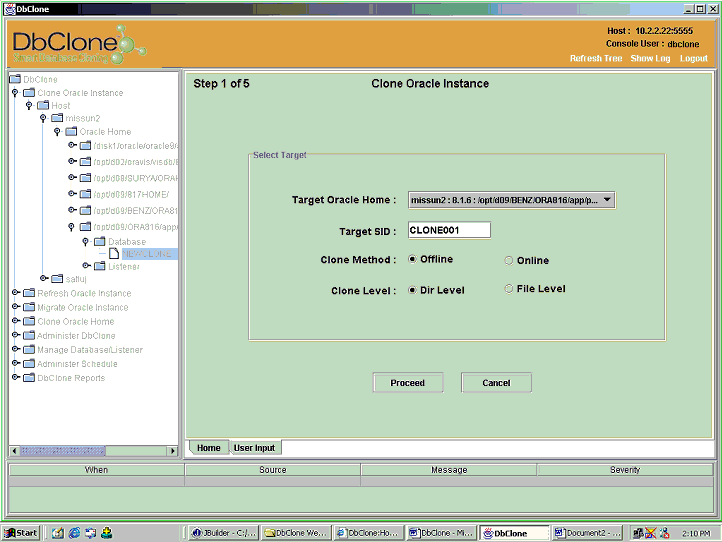
Click on the source database
“NEWCLONE” to start the cloning process. You will be asked
to select the target oracle home into which you want to clone the
database, enter the target database SID, select the cloning method
(online/offline) and cloning level (directory/file). Click on
Proceed button to go the next step.
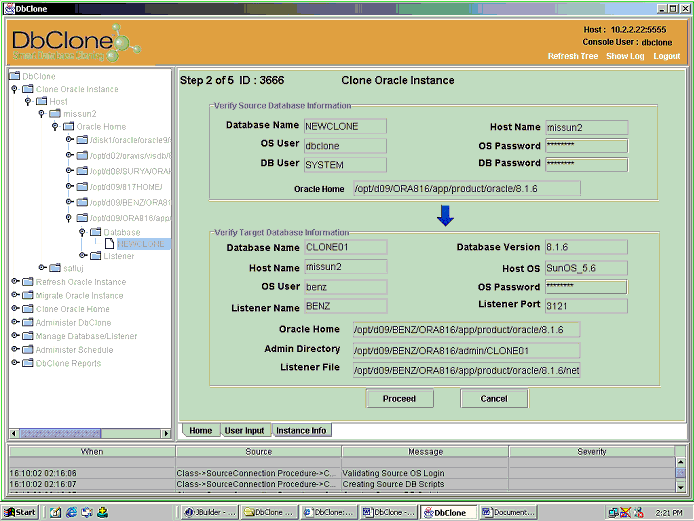
The second step displays
information about the source and target database. If the information
displayed is correct, click on Proceed button to continue or Cancel
button to
modify/abort the process.
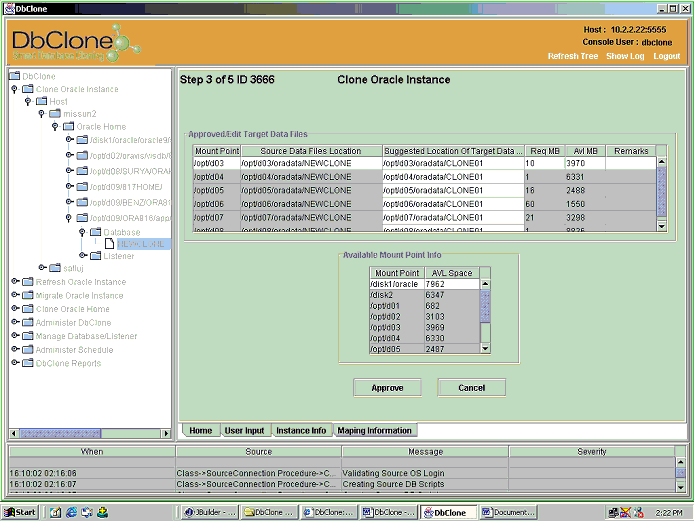
This step shows the location of
source data files, suggested location of target data files, required
disk space and available disk space on target host. Location of target data files
can be changed, if required. Click on Approve to continue
or click on cancel button to go back.
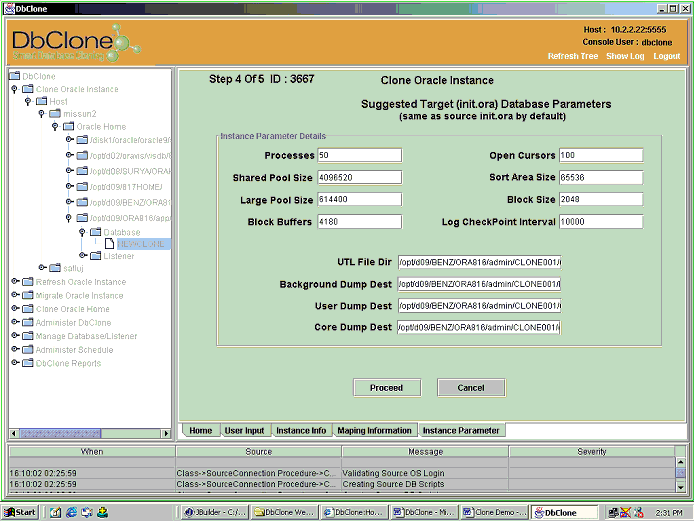
Fourth step of Cloning process
displays the parameters of target database’s initialization file (init.ora).
By default the parameters are same as the source database’s
parameters. Parameters can be changed if required. Click on Proceed
button to start the actual cloning process.
At this stage you can start the cloning right away or you can
schedule the cloning for later time.
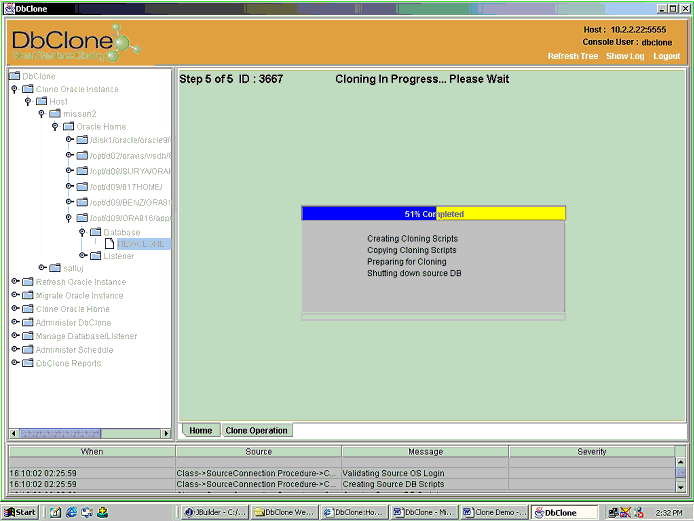
The last step shows the status of
Cloning process in a progress bar and the steps performed
sequentially. If there is any error it shows in a table at the
bottom of the screen.
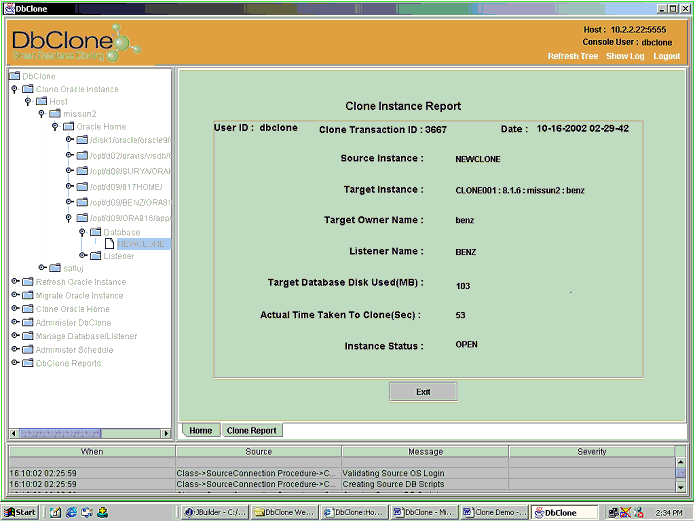
When the cloning is completed, it
shows the clone report. Click on the exit button to
see the newly cloned database in the tree.
|